
Personal data exposure and advertising profiling
Tashreef Shareef found that Windows shares personal data with third-party vendors for personalized ads and allows Microsoft access to location data. While users must use a Microsoft account for Windows Backup and device encryption, this account can track activity without explicit permission. Apps on Windows 11 track location to improve maps and weather predictions, but this data reveals patterns like home addresses, workplaces, and regularly visited places. Windows also assigns a unique advertising ID to each user so apps can link your activity across different apps, build a profile of your interests, and serve you personalized ads. To prevent this, users can turn off the advertising ID and the "Let Windows improve Start and search results by tracking app launches" option in the General settings. You can also keep location access for specific apps like maps or weather by leaving the main toggle on while turning off access for individual apps. Turning off the advertising ID does not mean you see fewer ads, but the ads will be less targeted to your interests.
Search risks and device communication
Windows 11 provides tools to control how much information the operating system collects and shares with external entities.
| Feature | Setting Path |
|---|---|
| Location Services | Settings > Privacy & security > Location |
| Advertising ID | Settings > Privacy & security > Recommendations & offers |
| Cloud Content Search | Settings > Privacy & security > Search permissions |
| Shared Experiences | Settings > Apps > Advanced app settings |
Windows Search accesses OneDrive files and Outlook emails if you sign in with a Microsoft account. This access creates a risk where a private document or email might surface while you share your screen during a call or if someone else uses your PC. To keep your search local and your cloud files private, go to Settings > Privacy & security > Search permissions. Under History, turn off "Search history on this device," and under Cloud content search, you should turn off the Microsoft account toggle. This keeps Windows Search limited to local files and apps. The "Shared experiences" feature allows apps on other devices to send messages or open apps on your computer. This setting defaults to "Everyone nearby," which allows any device in your vicinity to attempt communication with your PC. This represents a potential security risk, but you can limit this to "My devices only" if you want to restrict access to devices signed in to your Microsoft account or choose "Off" to disable the feature entirely.
Hardware access and data cleanup
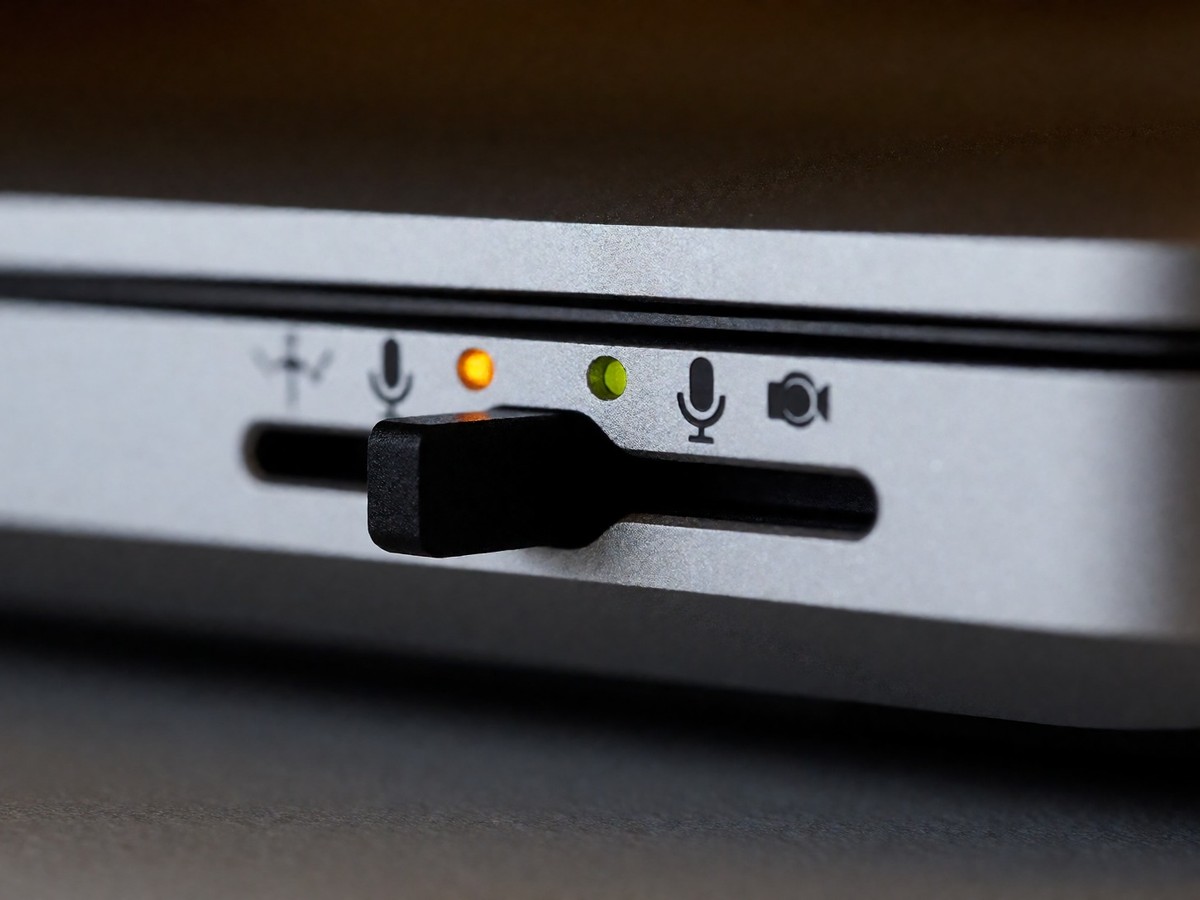
Old software installations present additional privacy risks because apps can maintain access to hardware even after months of inactivity. You can check which apps used the camera or microphone by looking at the Recent activity list in the Privacy & security settings. This list shows exactly which apps used the camera or mic and when, which is the fastest way to check for suspicious activity after installing new software. While Microsoft Store apps allow individual management, desktop apps like Zoom, Chrome, or Discord require you to turn off access for all apps at once because they cannot be managed individually. Microsoft may already have stored data on its servers from before you change these settings. Hardware and software manufacturers collect data to improve user experience or to help them sell more services or hand data over to third-party advertising partners. Users can view and delete their browsing history, search history, location activity, and app usage data through the Microsoft Privacy Dashboard in a browser. For a more thorough cleanup, tools like O&O ShutUp10++ can disable hidden tracking settings that do not appear in the standard Settings app.