
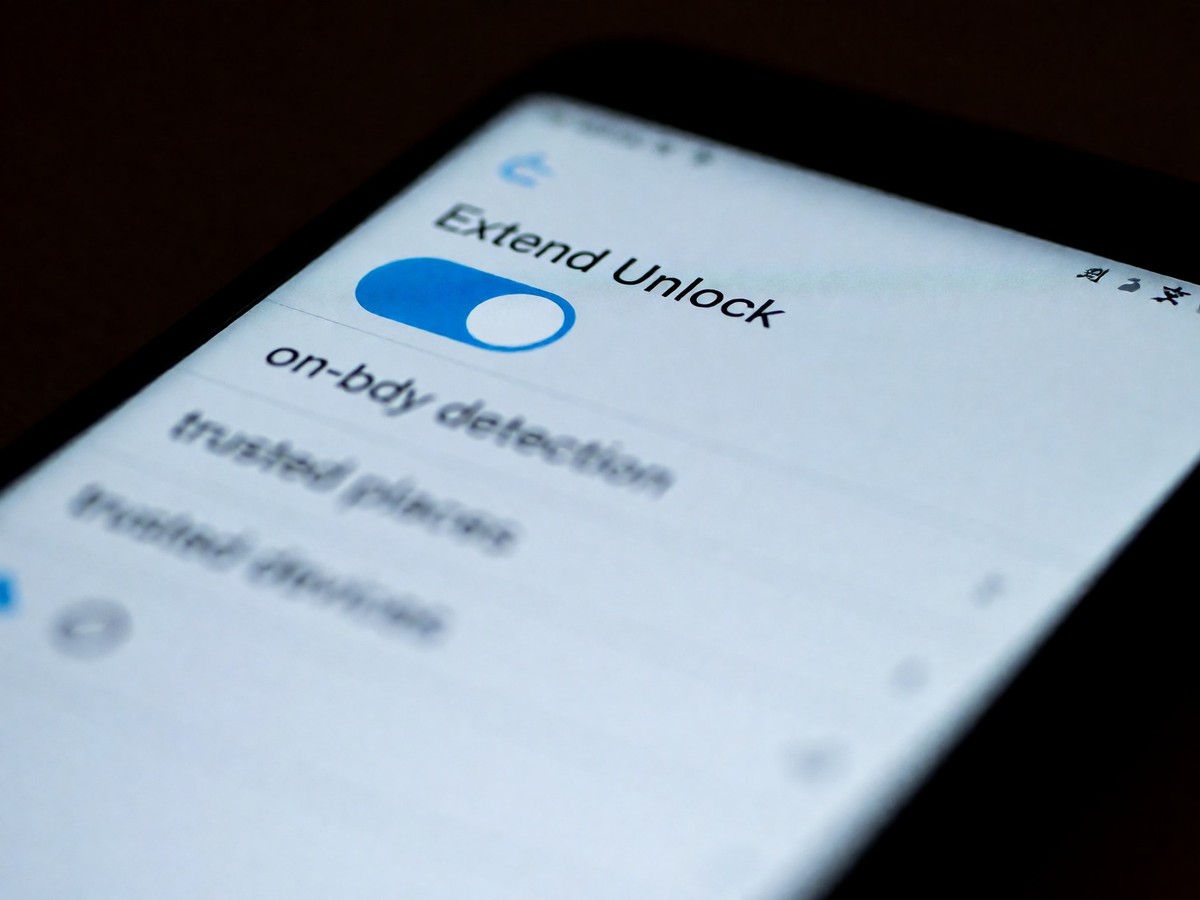
The transition to Extend Unlock
The name change to Extend Unlock clarifies the function of the Android setting, which launched in late 2015 as Smart Lock, by explaining how the feature extends the time a phone stays unlocked under certain conditions. I find this new name more useful because it separates the toggle from other "smart" features during the current AI age. The old name referred to the intelligence of the device. The new name describes the behavior of the device more accurately. This change also provides distinction from Watch Unlock, which Pixel users use to unlock a phone with a compatible Pixel Watch.
As the major One UI 9 update rolls out across many devices, I find this feature helpful. The feature allows a device to stay unlocked once a user enters credentials. I clearly prefer the way the name Extend Unlock removes ambiguity compared to the previous Smart Lock label, which changed in 2023. The name change helps differentiate this feature from other intelligence-based settings.
How the feature works
The purpose of Extend Unlock is to prevent the need for repeated PIN entries after you unlock the device once. I easily like the ability to keep a phone unlocked while on my person or connected to Bluetooth equipment. I find the convenience helpful.
| Feature Option | Function |
|---|---|
| On-body detection | Keeps the phone unlocked while it is on your person |
| Trusted places | Keeps the phone unlocked in added locations |
| Trusted devices | Keeps the phone unlocked when connected to a Bluetooth device |
Users can set these parameters by following Settings > Security and privacy > More security and privacy > Extend Unlock. This path varies depending on the specific device. You can select devices that have already paired with the phone via Bluetooth or add specific locations where you want the phone to remain unlocked. I must warn that you should choose these locations and devices carefully because your phone can remain unlocked in these areas even if someone else has the device in their hands. Pixel users access Watch Unlock via the Watch app under Watch preferences > Security > Watch Unlock to connect a compatible Pixel Watch. Watch Unlock works to unlock the phone, while Extend Unlock keeps the phone unlocked.